


Game Settings
Last updated
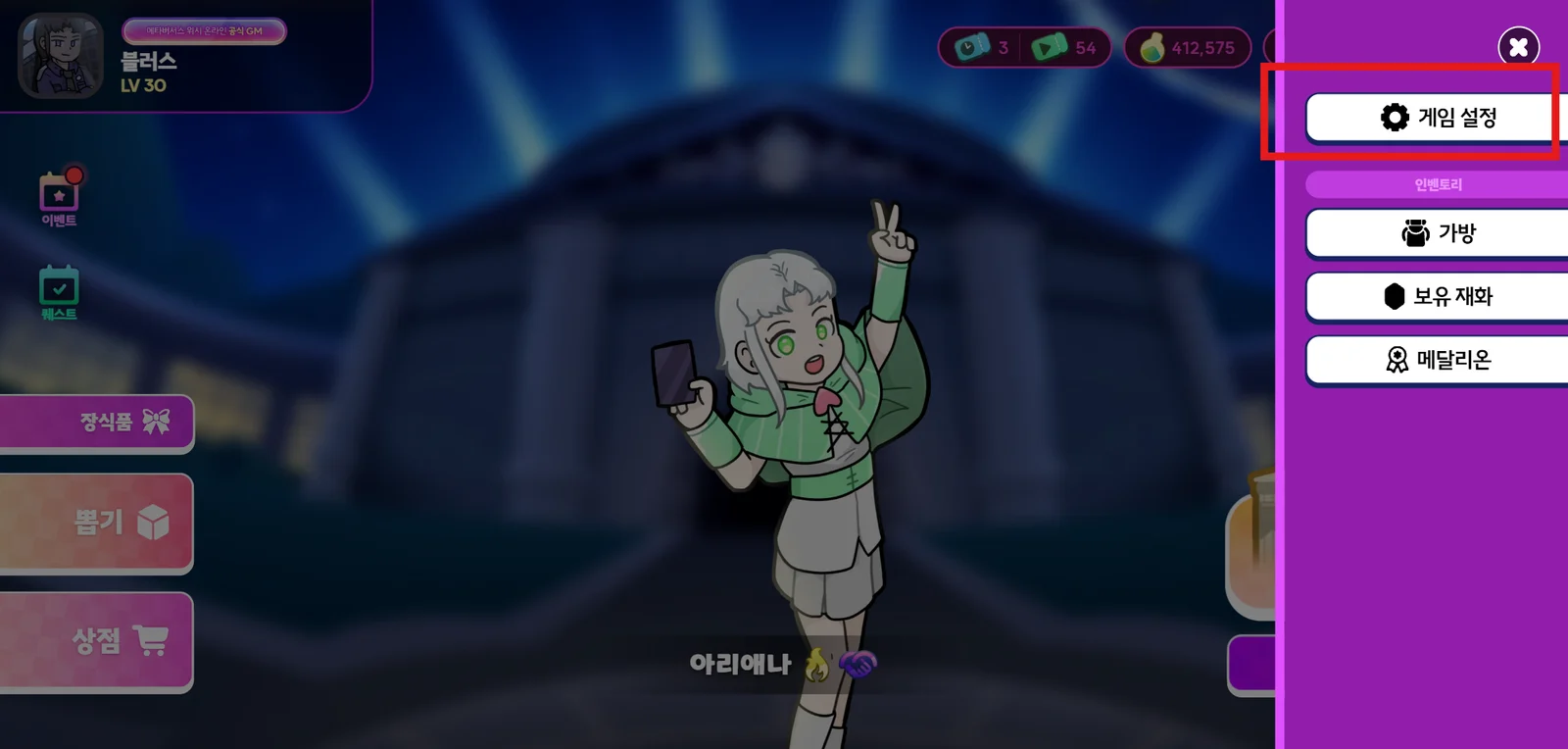
To open Game Settings, open the menu and tap the “Game Settings” button.
Sound
Music
Use the slider to adjust the music volume. Tap ON / OFF to turn the music on or off without changing the volume level.
Sound Effects
Use the slider to adjust the sound effect volume. Tap ON / OFF to turn sound effects on or off without changing the volume level.
- Crowd roar: Turn the crowd roar that plays when you land a hit during a match on or off separately.
Graphics
Motion settings
Adjusts the motion effects used in the game.
- Minimize: Repeating animations play only once, no camera shake, screen responses apply instantly
- Simplified: Smaller and fewer repeating animations, no camera zoom
- Normal: Plays all animations
Effect settings
Adjusts the visual effects used in the game.
- Minimize: Turns off all effects during a match
- Simplified: Replaces the background blur effect, no special cinematics during a match, fewer card effect animations, fewer click effects
- Normal: Shows all effects, including the background blur effect
Convenience
- These settings do not apply in “Campaign Mode” matches.
Auto-advance during a match
- Play all Currency Cards in the Buy Phase: Plays your Currency Cards from left to right, following an internal priority.
- Play all Weapon Cards in the Combat Phase: Plays your Weapon Cards from left to right, following an internal priority.
- End the Action Phase if no Action Cards can be played: Automatically ends the Action Phase if you don't have enough Action Points, only have Action Cards you can't play due to their conditions, or have no Action Cards in your hand.
- With a 5/2 start, Wish in the Wish Phase on the 2 Gem turn: At the start of your 1st or 2nd turn, if your hand has 2 “Stone” and 3 “Dagger” cards, you automatically ‘Wish’ to gain a Wishing Star and immediately end your turn.
- Skip after 1 second if there's nothing to do in the Buy/Combat Phase: If there are no actions available in that phase, it automatically advances after 1 second. (This also skips when “Stone” is the only card you can buy.)
Hand Sorting
- Sort by Action Cards, Currency Cards, Weapon Cards, then Other: Automatically sorts the cards in your hand by type.
- Sort Action Cards by AP Cost, ascending: Requires the setting above to be on. Sorts the Action Cards you draw by AP Cost.
- Sort by Cost, ascending: Sorts the cards you draw by Cost, from lowest to highest.
Market card purchase controls
Changes how you buy Market Cards. If you often buy cards by mistake, try switching to Double tap or Hold.
- Tap
- Double tap
- Hold
Anti-sniping settings
Streamer Mode: Hides some of your info from your Rival to prevent sniping while you stream.
- There is a short delay when searching for a random Rival in Competitive matches (Ranked Match, Event Match).
- Your info is shown anonymously.
- When you enter a “Private Match”, a warning about leaking your room number appears and the room number is hidden. (You can only see it by copying it.)
Account
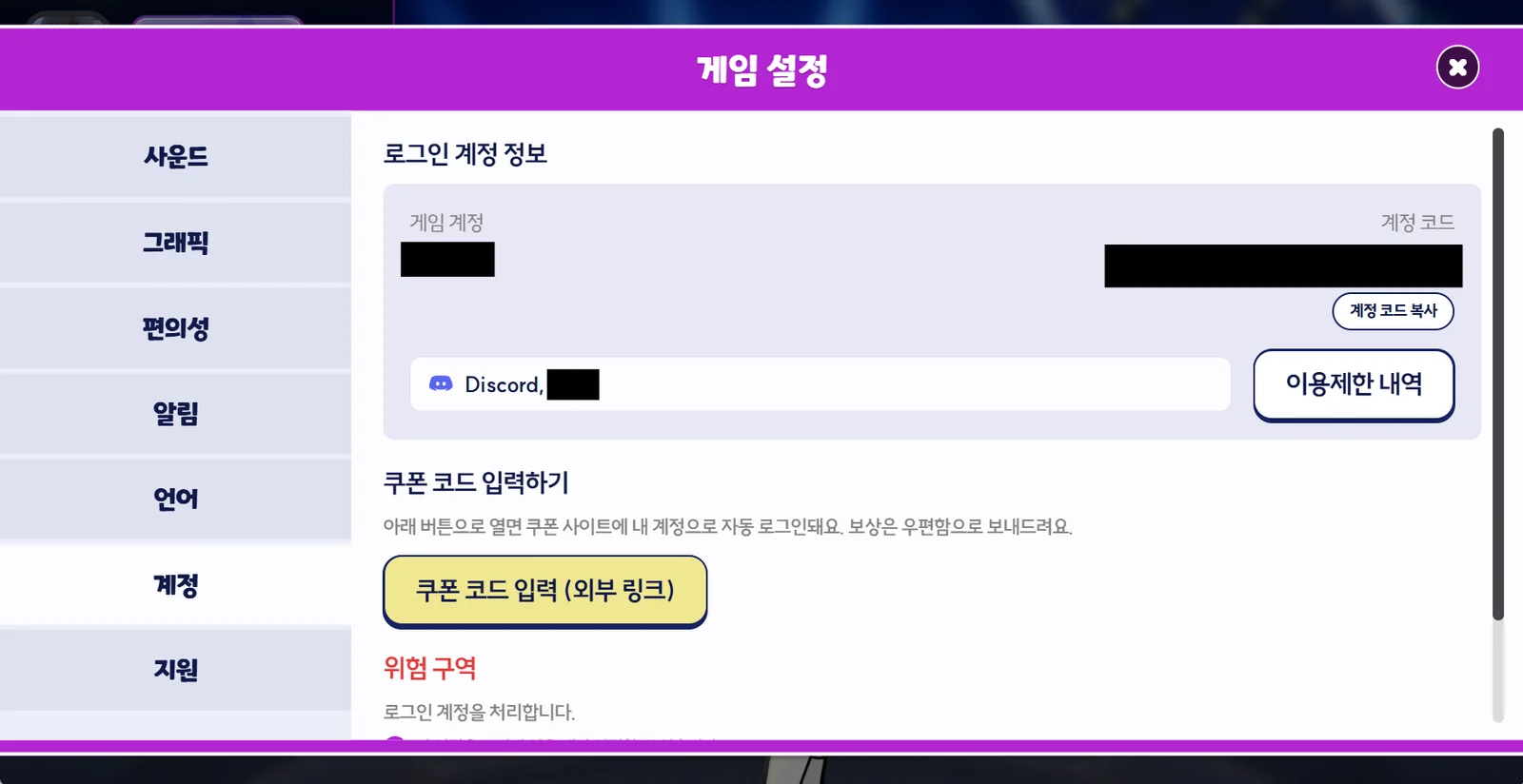
- Login Info: View your Game Account name, Account Code, and linked accounts. Tap the Copy button to copy your Account Code.
- Enter a coupon code: Redeem a coupon code on the account you're currently logged in to. (A new window opens where you enter the code on a separate screen.)
- Restriction History: View any restrictions applied to your account.
- Danger Zone: Manage the account you're logged in to. These options are only available in the lobby.
- Log Out
- Request Account Deletion (Details: I want to delete my account.)
Support
- Need help?
- Visit the forum (Official Discord server)
- FAQ (Frequently Asked Questions)
- Random Item Rates
- Open Source Info
- Payments
- Purchase History
- Game Rating Details
- Credits
Need more help?
Reach out to us on our official Discord server, or email us at help@metaversus.dev.